Start Using Minimap Section Headers in VS Code
Learn how to get the most out of Visual Studio Code minimap and turn it into a valuable, indispensable tool in your coding workflow.
You’re likely more than familiar with the minimap in Visual Studio Code—it gives you a quick overview of the currently opened file, so you can easily jump to any part of the code you want to work on. But minimap is actually much more powerful than this. In this article, you’ll learn how to get the most out of it and make it actually useful beyond just being an oversized scrollbar.
The minimap has several customizable options, and you’ll find them in Settings under ”Text Editor → Minimap.”
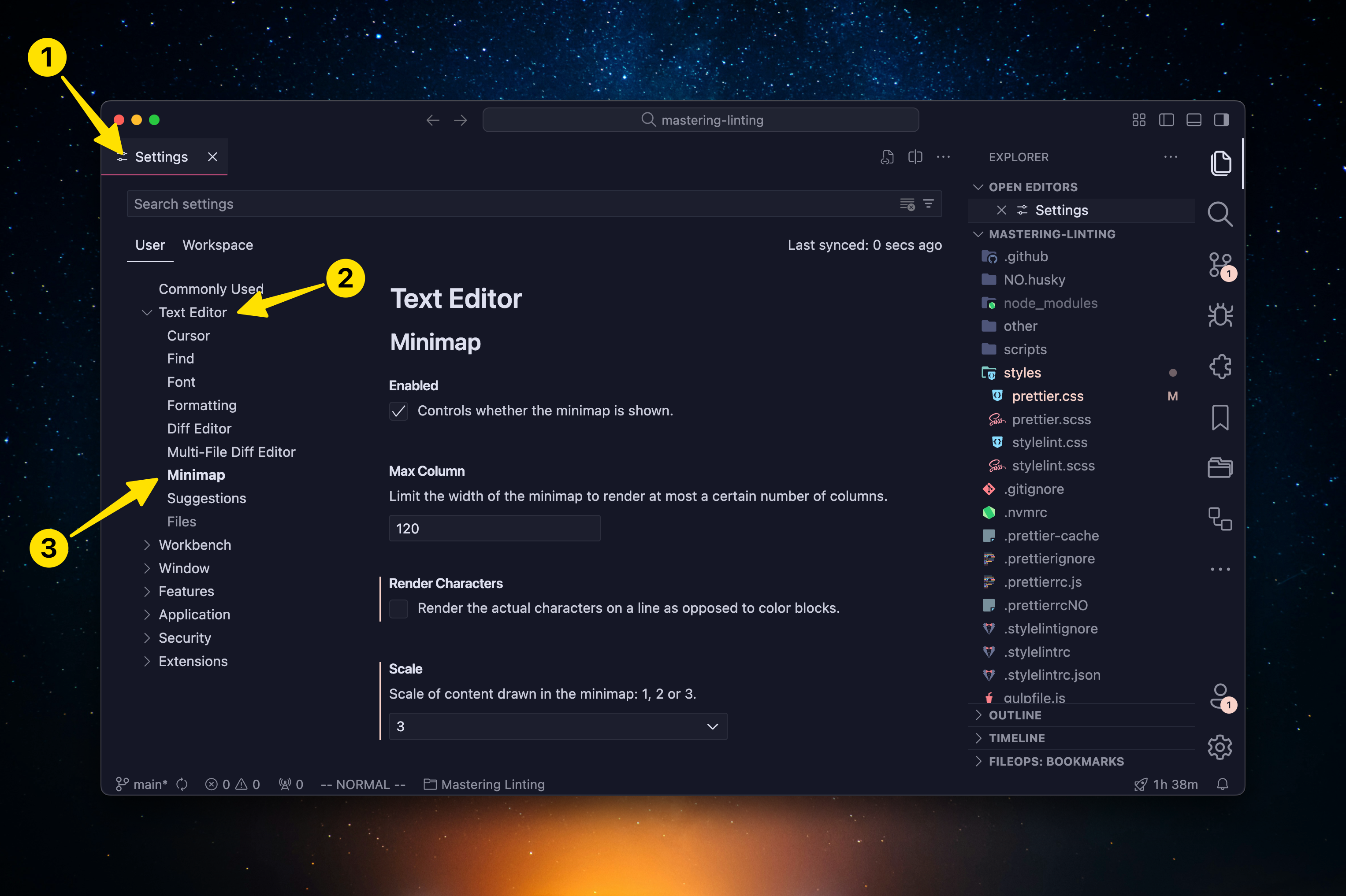
How Minimap Section Headers Work
Most minimap options are straightforward and clearly explained, so I’ll outline here the one option you might not be aware of: Section Headers.
Section headers allow you to display specially designated comments in the minimap, which makes it trivial to quickly find a specific section of your code. You can enable them by toggling the option “Show Mark Section Headers.”
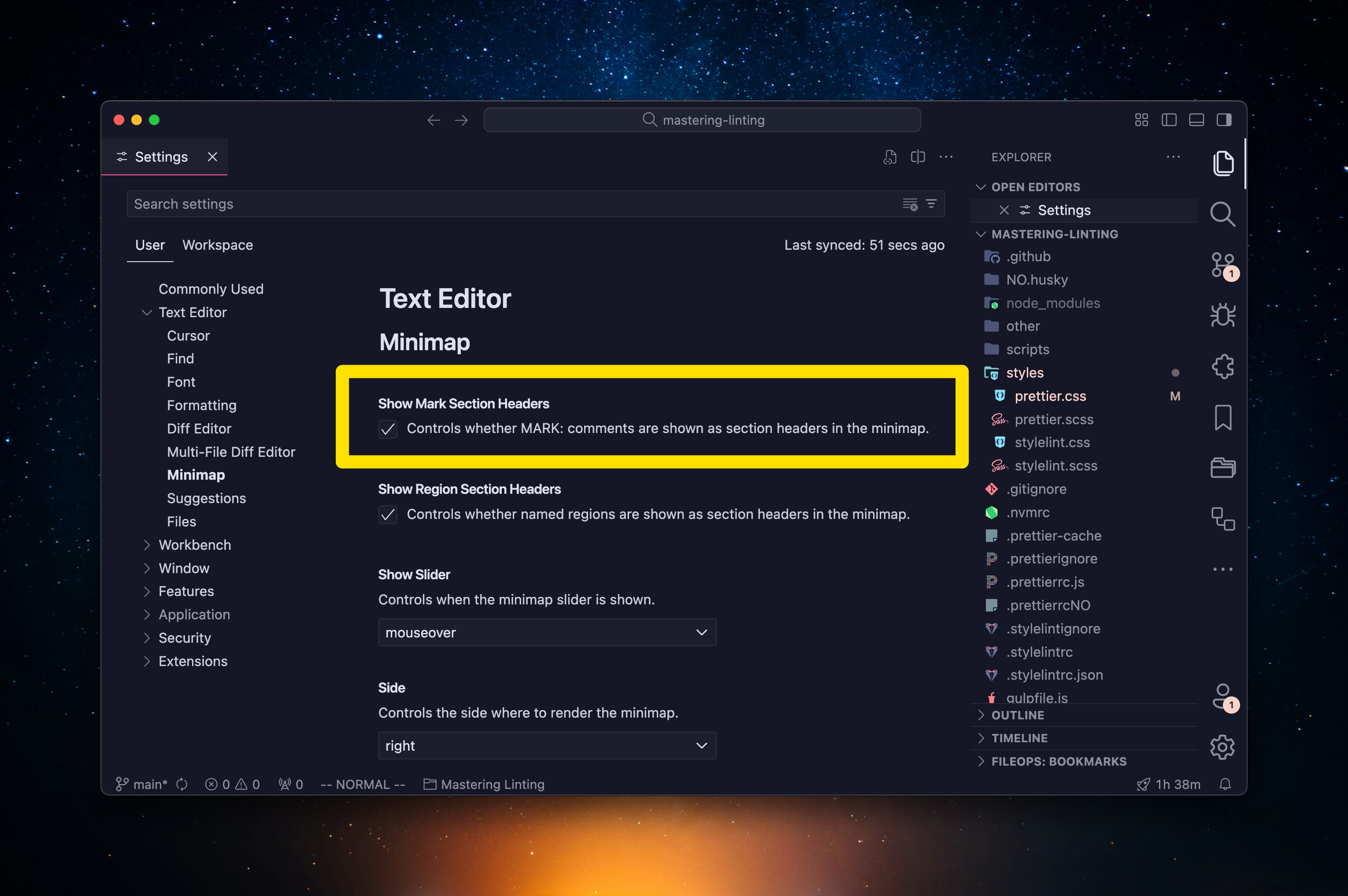
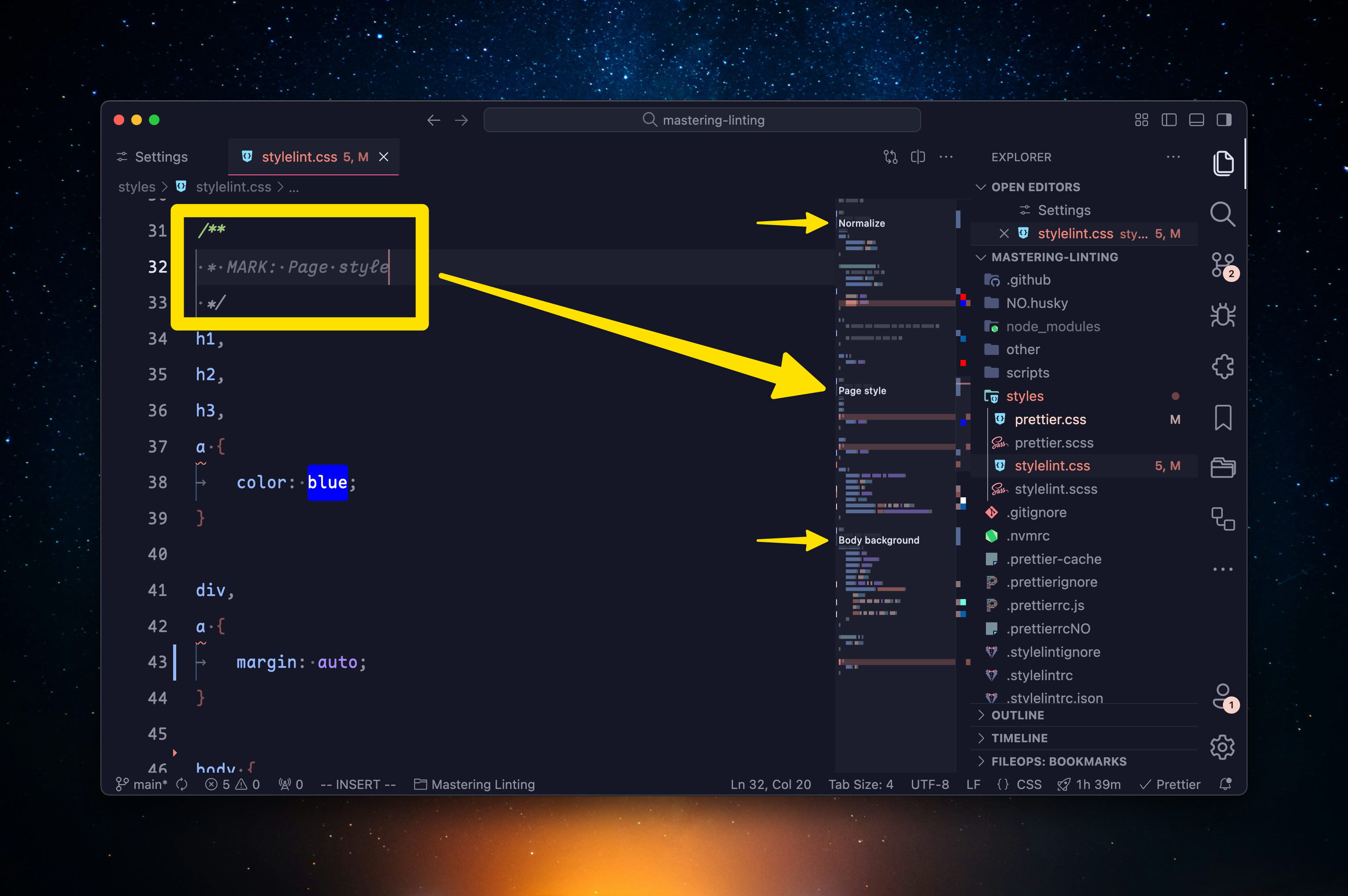
When enabled, any comment you add to your code designated with “MARK:” will be visible in the minimap. Note that the designation is case-sensitive, so it must be in uppercase to work.
Additionally, all characters after MARK: will be visible in the minimap, including the closing comment characters like */ or --!>, so use them with single-line comments or format your comments in a way that comment opening and closing strings are on the separate lines. Keep this in mind when working with languages that only support multi-line comments, like CSS or HTML.
You can tweak the styling of the section headers by adjusting the "Section Header Font Size" and "Section Header Letter Spacing" options. Depending on how you set up your minimap size (Scale option in settings), you'll want to tweak this and potentially increase the font size to make it more apparent.
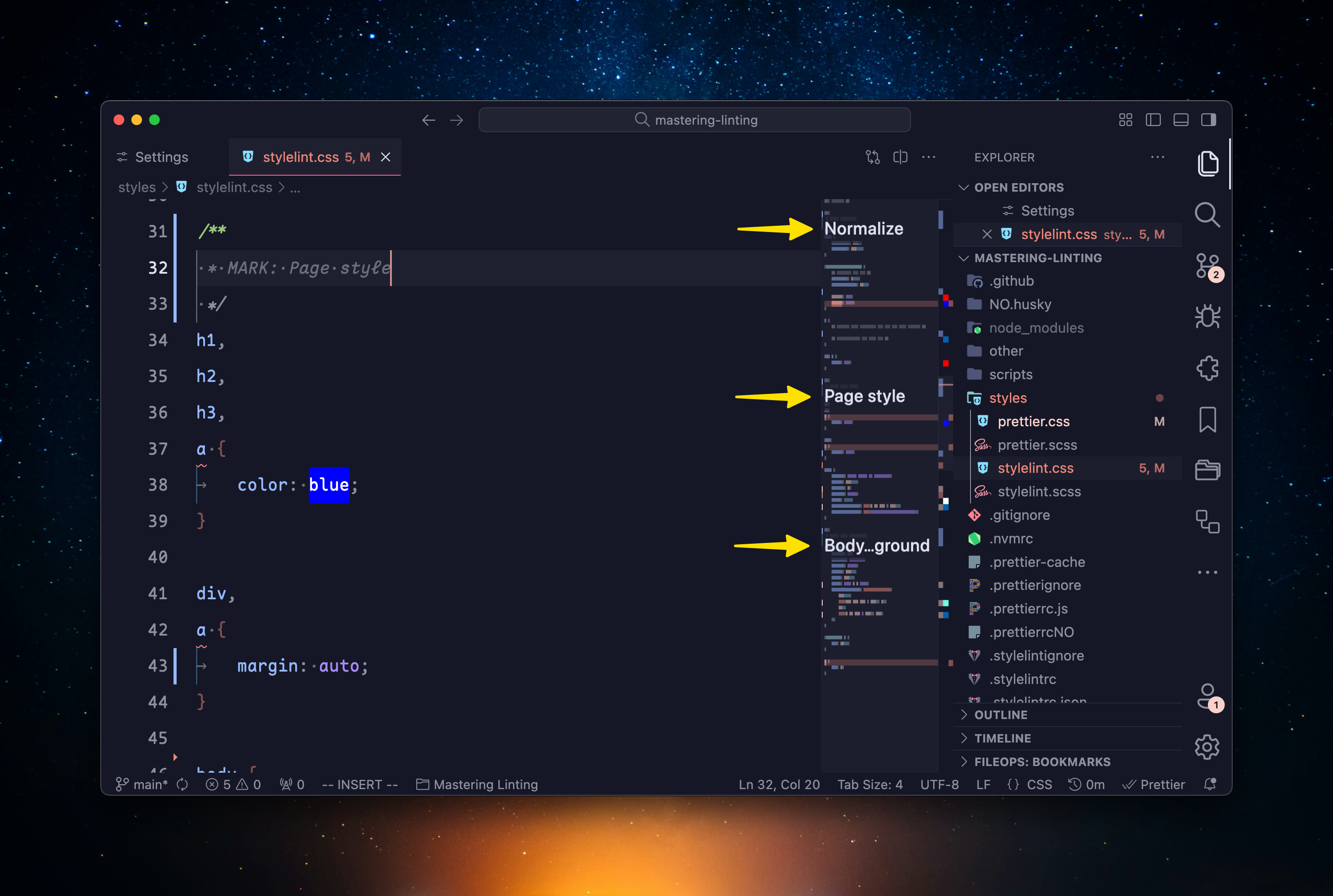
I like the font size set to 16 and the letter spacing to 0. If you're using smaller font sizes, consider increasing letter spacing to make the section headers more readable.
How Section Headers Work With Named Folding Regions
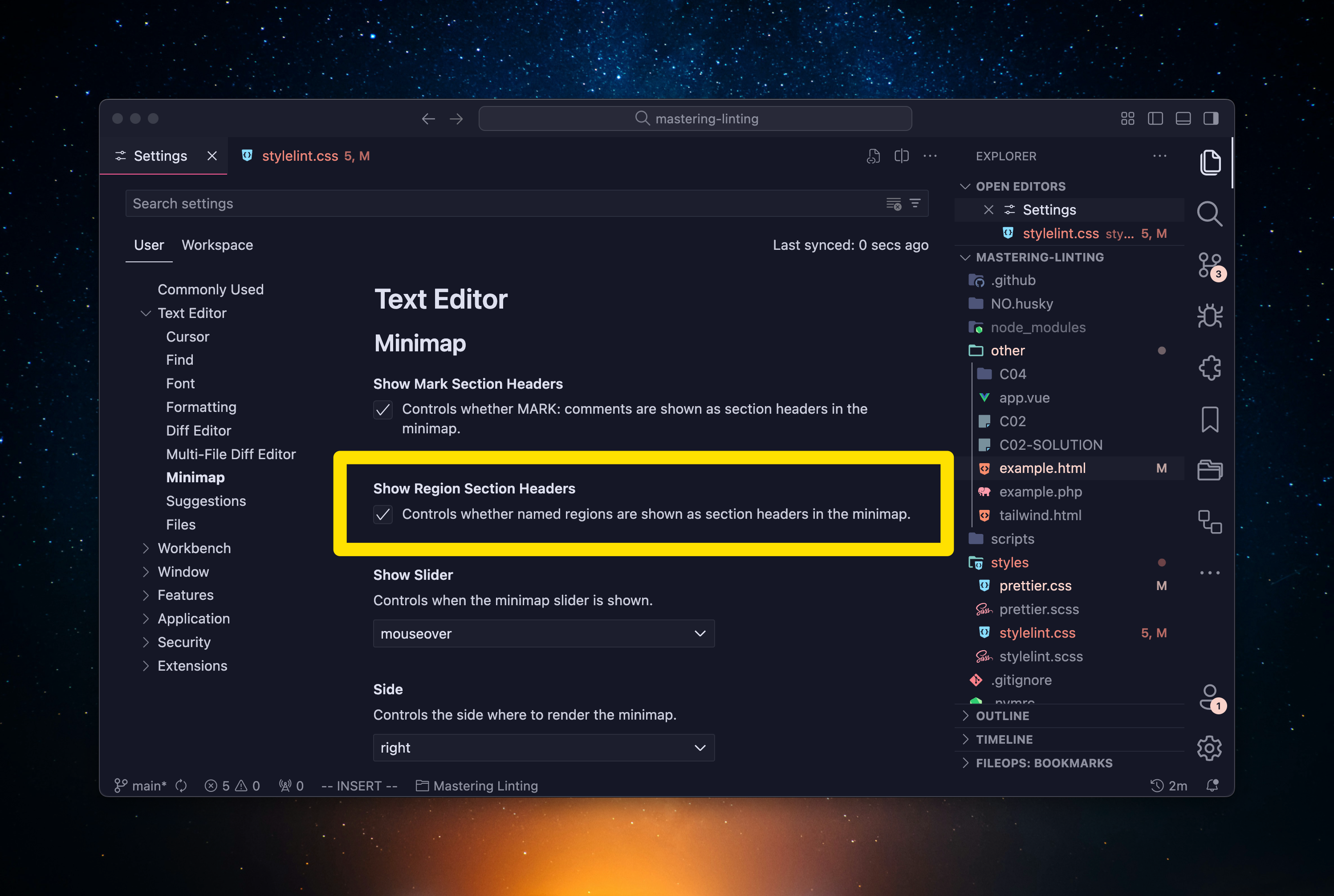
Section headers in minimap also work with named folding regions. You can enable this option in minimap settings under "Show Region Section Headers."
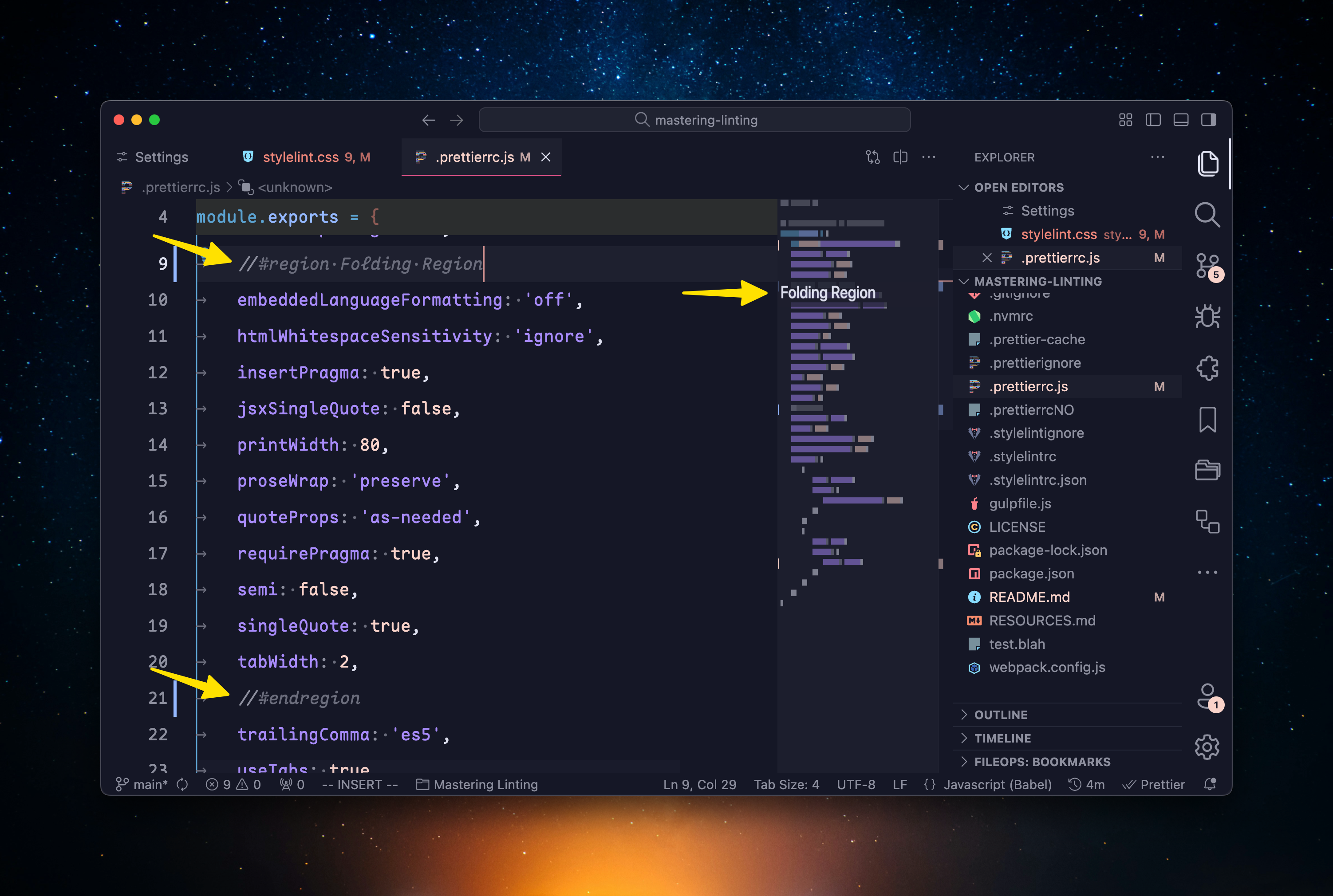
Named regions allow you to collapse/expand a specific, arbitrary part of code, and they are created with a special comment that looks along the lines of //#region to designate the start of the region and //#endregion to designate the end of the region.
You can find the list of folding range designations for different languages in VS Code Docs
Any string after the opening region designation will appear as a section header in the minimap.
The downside of named folding regions is that they don't work in minimap as section headers for all languages. In CSS, you can create a named folding range, but its name will not appear in the minimap, at least not in the current version of Visual Studio Code, 1.96.0.
Conclusion
Using section headers can make your minimap more valuable, as they allow you to quickly jump to different parts of code. This can be especially useful in larger files or when you often jump between key parts of the code in one file.
Additionally, section headers can make your code more readable, as they'll force you to organize it into logical sections, improving your workflow and making you a bit more productive.